No account found
A super admin must create the exact email address first. Email comparison is normalised, but use the corporate address from the invitation.
How to submit, validate, manage, and automate data workflows in Susan Data Manager.
Susan is a controlled data-management portal. Users work from named templates instead of having to know a database, table, stored procedure, or Fabric element. A template can collect a file, present a structured form, run a process, or refresh a report.
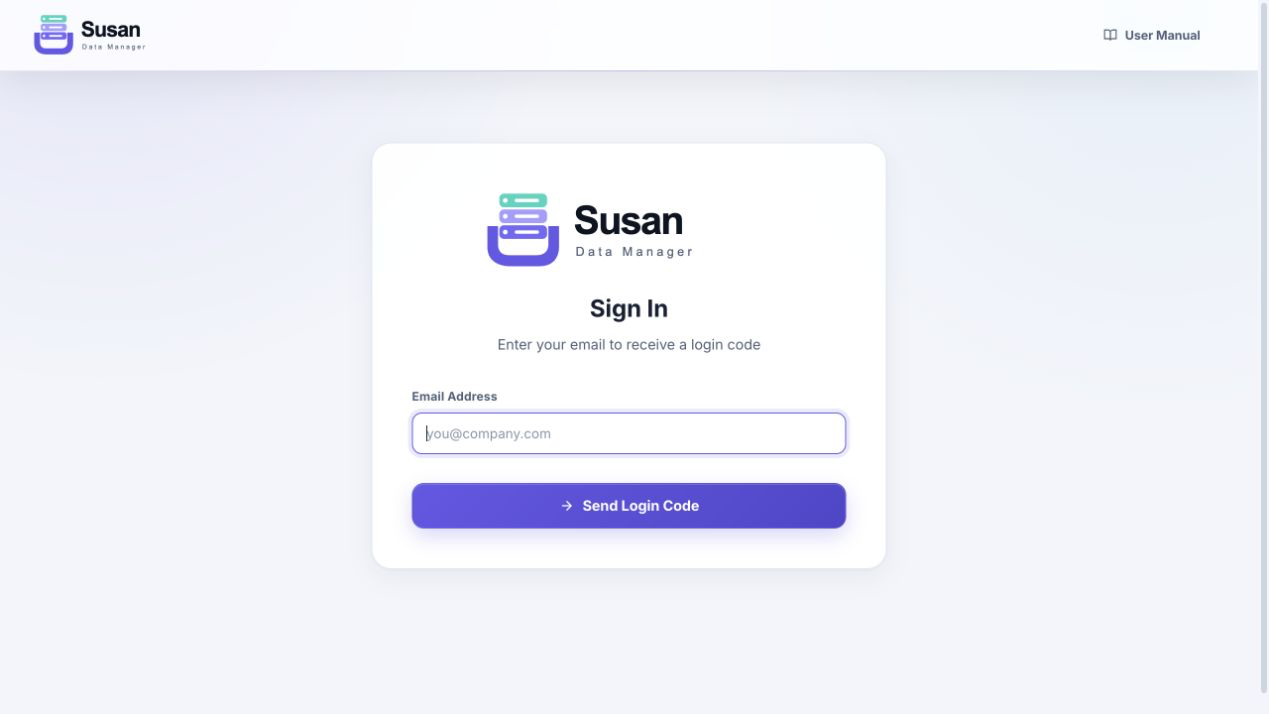
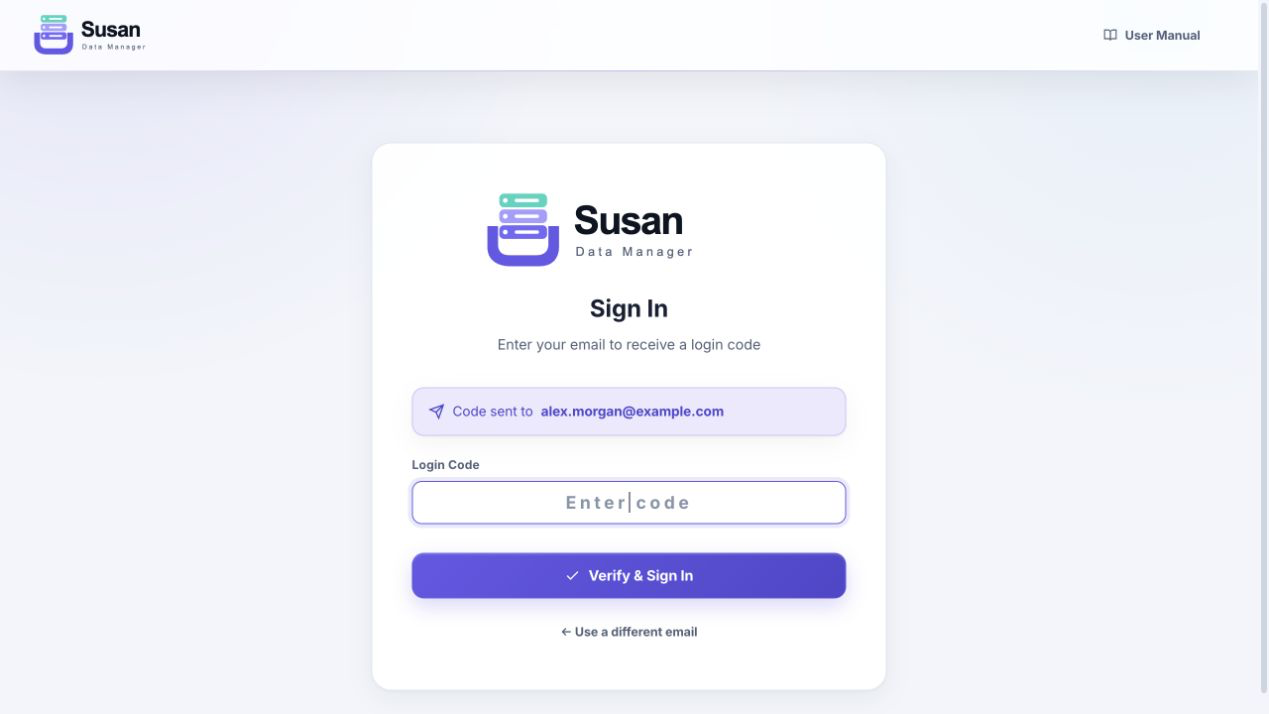
When passkeys are available, sign in once using email or company SSO, then open your user menu and select Security. Enter a name for your passkey, select Add a passkey, and follow your browser's fingerprint, face recognition or PIN prompt. You can add a second passkey for another device or security key.
Next time, choose Sign in with a passkey on the sign-in page. You will not need a login email. If your browser does not support passkeys, the other sign-in options remain available.
If you cannot use your passkey, sign in with an email code. After signing in, open Security to remove a lost passkey or add a replacement. Administrator accounts that require company SSO must continue to use SSO.
You can enrol directly while signed in, without signing in again. To add a passkey on your phone, choose Create QR code in Security and scan it with your phone’s camera. Removing a passkey signs out your other sessions and cancels unused enrolment links. Administrator accounts that require company SSO continue to use SSO.
Newly invited users automatically receive a passkey onboarding email. Setup is optional but strongly recommended. Open the email link to start setup without signing in, then approve with Windows Hello, your device PIN, fingerprint or face recognition. Onboarding links work once and are valid for 7 days. Super admins can choose Enrol a user in their account menu, or Send onboarding beside a user without a passkey, to send a replacement email. A key icon beside each user shows whether they have enrolled. Keep onboarding links private.
| Control | Purpose |
|---|---|
| Susan logo | Return to the home screen. |
| Theme | Switch between light and dark mode. The choice is saved in the browser. |
| User profile | See the signed-in email and role, or sign out. |
| User Manual | Open this guide in a separate browser tab. |
| Admin links | Templates, Execution History, Rules, and—where permitted—Servers, Fabric Connections, and Users. |
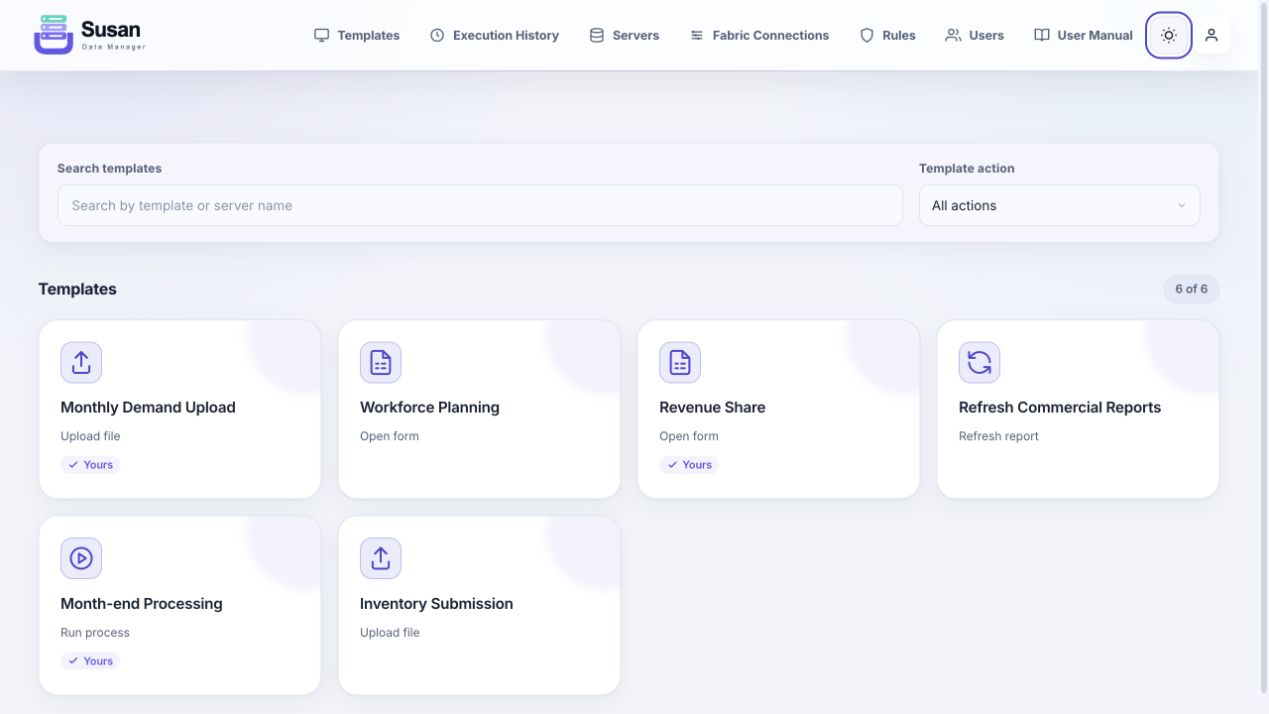
Super admins may also see SQL server tiles. Selecting one opens the table browser and shows a connection badge. Use the badge’s Disconnect action to leave that server context.
.xlsx or .csv file. A specialised template may accept only one of these formats or require several files.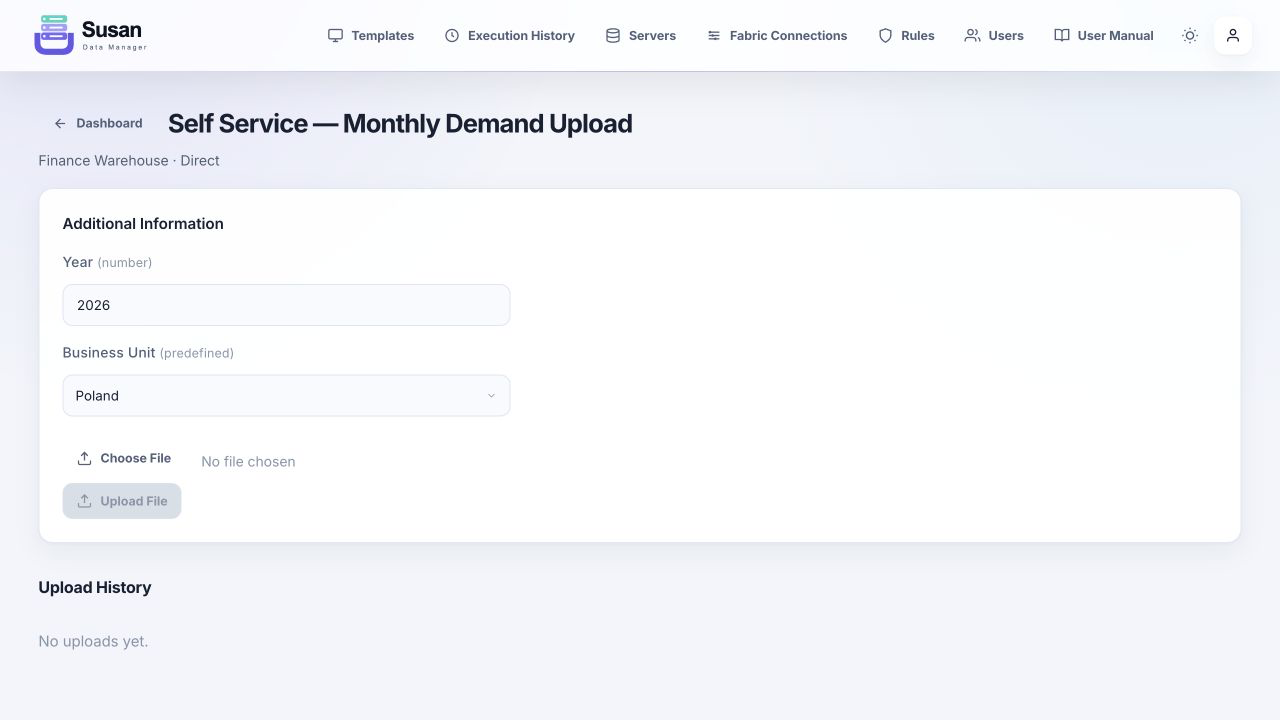
| Method | What it does | User impact |
|---|---|---|
| Insert | Adds incoming rows to existing data. | Existing rows remain. |
| Replace by Key | Replaces rows matching the configured key columns, then adds the submitted rows. | Check that the selected context/key is correct. |
| Full Replace | Validates and stages the complete submission before replacing the destination contents. | The submitted data becomes the full current dataset. |
The tile’s action is intentionally simple. The template name and the page that opens tell you which workflow to follow.
Upload Excel or CSV, select workbook sheets, map source columns when requested, preview the data, and confirm. The owner chooses Insert, Replace by Key, or Full Replace.
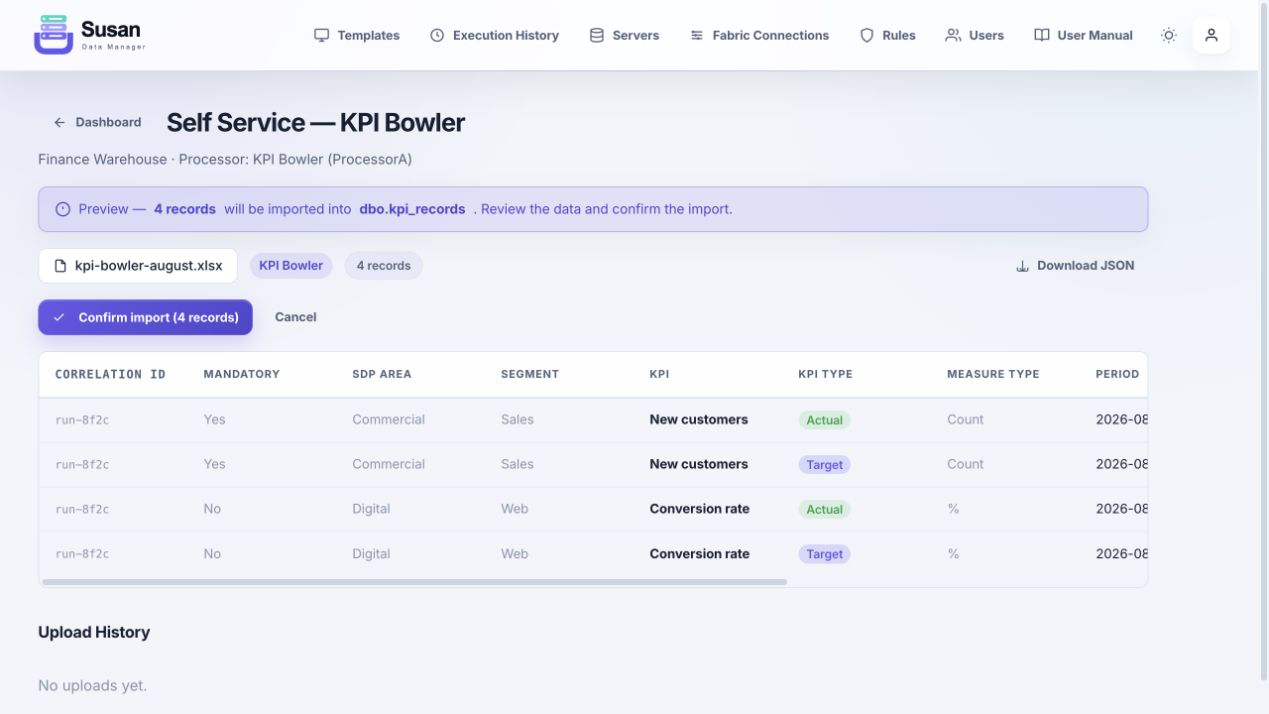
Processors transform a known workbook structure before import. Available processors are KPI Bowler, Sources of Revenue, Organic Revenue Growth & Volumes, and Financial Metrics Matrix. Single-sheet files open a preview; multi-sheet files open sheet selection and tabbed results. Where offered, Download JSON exports the parsed preview.
Upload a workbook and assign sheets to Product Master Data, 12M Consumption, and Current Inventory. Review each dataset’s mapping and preview, then import them together. The owner can configure Insert or Replace by Key.
Upload a CSV file and select the required Business Unit and Year. Susan applies those selections to the mapped destination columns for every imported row.
Upload an XLSX workbook, select the discovered tabs, and verify or override Country, Cluster, Segment, and Brand per tab. Choose full-year replacement or limit the import to selected workbook months, and optionally keep decimal target values instead of the default whole-number rounding. Review added, updated, and deleted SQL values before approval. The final step creates one of seven rolling backups and performs the exact replacement atomically; any listed unmapped rows are skipped.
Upload one .xlsx workbook, then assign workbook sheets to HFM Chart of Accounts, HFM Custom 2, and HFM Custom 4. Review the three tabs and import all.
Attach all three required workbooks—Account, Custom4, and ICP. Select one sheet from each file, review generated results, and confirm. Susan writes the configured Account, Custom4, ICP, and UD4 IN outputs.
Select Month, Year, Business Unit, and Department; enter the FTE value; then select Save FTE. The same Month + Year + Business Unit + Department combination cannot be entered twice. Activity History shows previous entries.
Select Year, Month, and Page Name, then load the context. Add or edit rich-text Header, Footer, and Content Description. Existing comments for the context can be edited or deleted.
Enter Year and Month and select Load. Complete and save each of the four tabs separately: % of Region, % of Region Product Revenue, % of Revenue, and Revenues Represented.
Select Business Unit and Year. Enter monthly Target and/or Actual values for the configured BWC and BFC hierarchy. Parent and cumulative values are calculated and read-only. Select Save when finished.
Select Business Unit and Year. Enter monthly values at the editable Legal Entity → Product → Metric level. The Totals section updates from the leaf values. Locked month columns cannot be edited.
Select Business Unit and Year. Enter monthly Target and Actual values for the configured metrics, then save. Calculated fields and locked months are read-only.
Select Run All. Procedures execute in their configured order. The live status shows Pending, Executing, Completed, or Failed; event timestamps; elapsed time; the first returned result; and any SQL error. Execution stops at the first failed procedure.
Select Run All. Refresh groups run in order, while elements inside one group refresh in parallel. The page shows group and element status, the active job, previous jobs, IDs, timings, and errors.
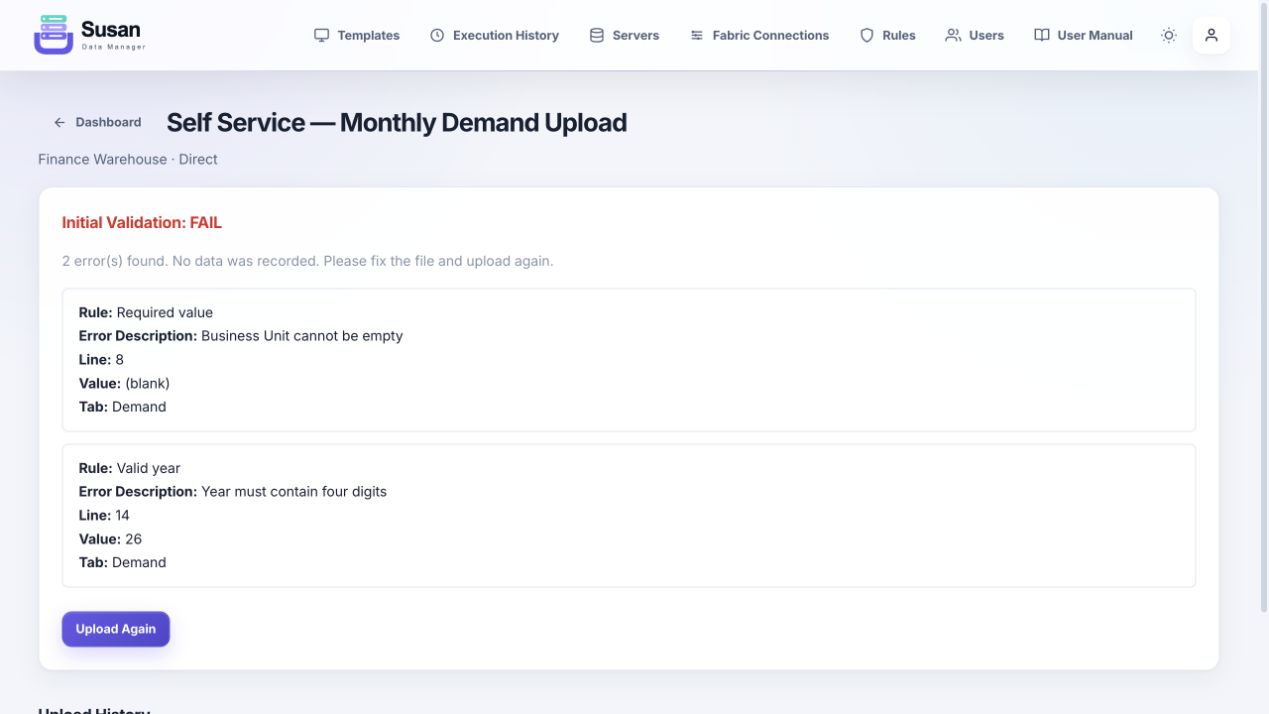
If validation fails, Susan does not confirm the import. The error view identifies the rule, description, source line/value, and sheet where applicable.
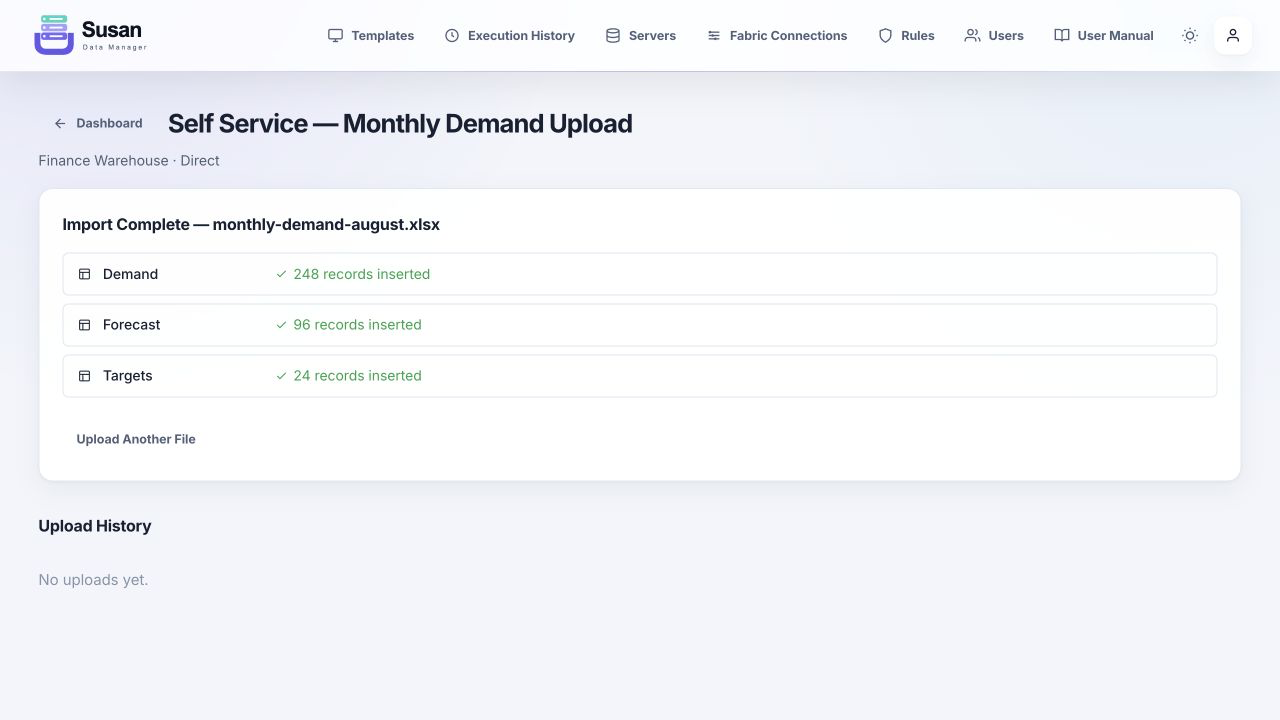
A success banner or Import Complete page shows inserted record counts. Multi-sheet and multi-dataset imports show a result for each part.
File templates show immutable Upload History with submission time, user, file/sheet, correlation ID, and metadata. Where available, Edit Metadata updates contextual values. Form templates may show a workflow-specific activity table instead.
After a source template completes successfully, Susan can start one or more Stored Procedures templates automatically. Follow-up templates run sequentially in the configured chain and may themselves start later Stored Procedures templates.
| Source workflow | Captured context examples |
|---|---|
| File upload | Every Additional Information field, Correlation ID, File Name |
| FTE | Year, Month, Business Unit, Department, FTE |
| Comments | Year, Month, Page Name |
| Revenue Share | Year, Month |
| Churn / Demand Metrics / Retention | Business Unit, Year |
| Every chain | Source Template ID, Source Template Name |
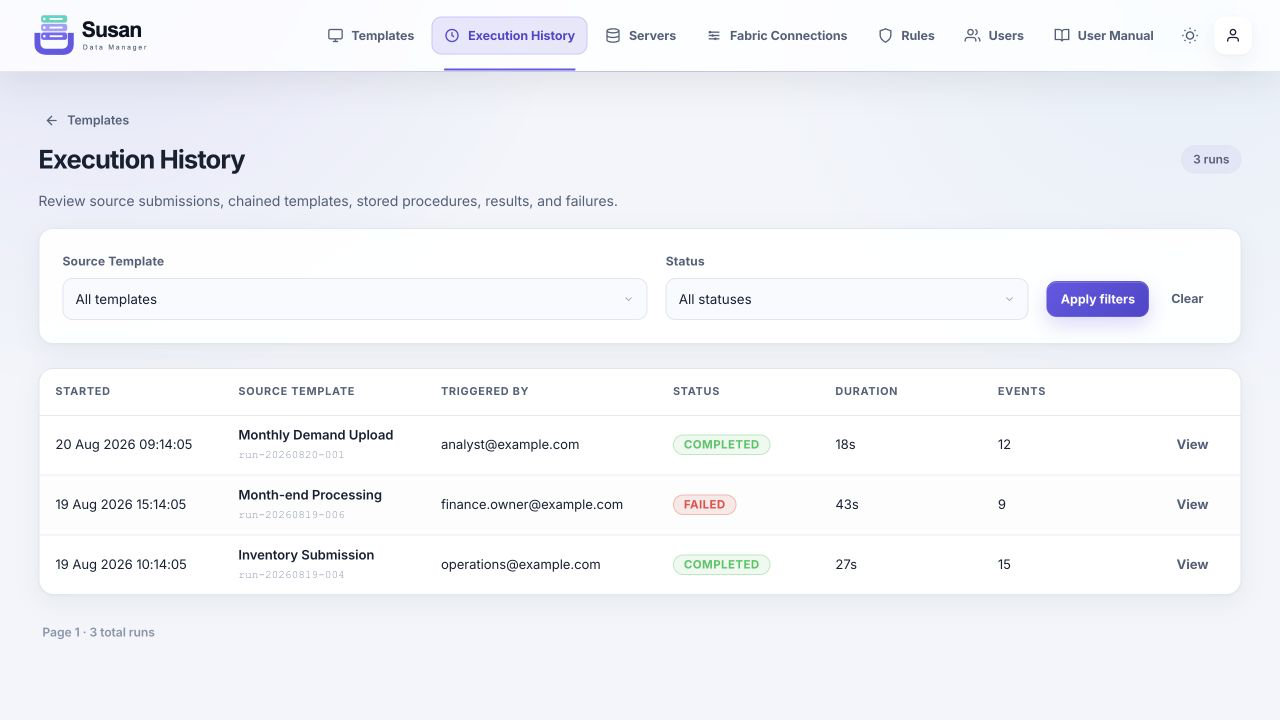
Trigger users, template owners, and super admins review these runs in Execution History. The list shows source, trigger user, status, duration, and event count. The list refreshes automatically, while an active detail page updates its status, duration, error, and ordered event log in place without reloading the page.
This module is available when a permitted user has an active SQL server context. The sidebar searches and lazy-loads accessible tables by schema.
| Function | How to use it |
|---|---|
| Browse & paginate | Select a table from the sidebar, then use Previous and Next below the rows. |
| Search current page | Type in Search rows to filter the rows currently displayed. |
| Column filters | Add filters using Contains, Equals, Starts with, >, <, Is Null, or Is Not Null, then Apply. |
| Insert | Expand Insert New Row, fill non-identity columns, and submit. Validation rules run first. |
| Edit a cell | Double-click an editable cell, enter a value, then press Enter. Press Escape to cancel. |
| Select / bulk update | Select rows, choose Bulk Update, select one column, and enter the new value. |
| Delete | Delete selected rows, filtered rows, or—after explicit confirmation—all rows. |
| Upload Data | Open the table upload workflow to import a file directly into the selected table. |
| Export CSV | Download all rows matching the active server-side filters. |
| Favorite | Mark the table as a personal favourite. |
| Audit Trail | Review recent recorded changes to the table. |
| Notes | Read or save a shared note describing the table. |
| Capability | User | Admin / owner | Super Admin |
|---|---|---|---|
| Use templates | Assigned | Assigned + owned | All |
| Manage templates | — | Owned | All |
| Manage validation rules | — | Owned resources | All |
| Lock form months | — | Owned template | All |
| Execution History | Runs they triggered (read-only) | Triggered + owned runs | All runs |
| Users & table permissions | — | — | All |
| SQL servers | As granted | — | Manage all |
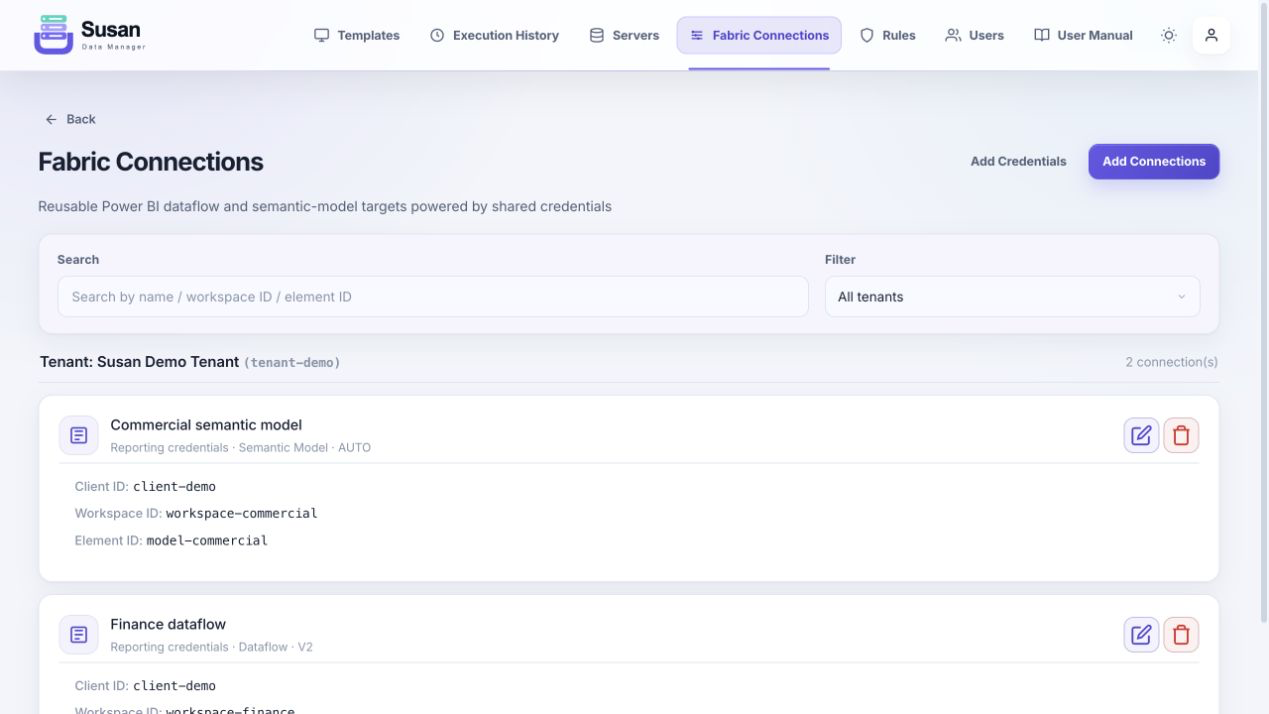
| Fabric credentials/connections | — | — | Manage all |
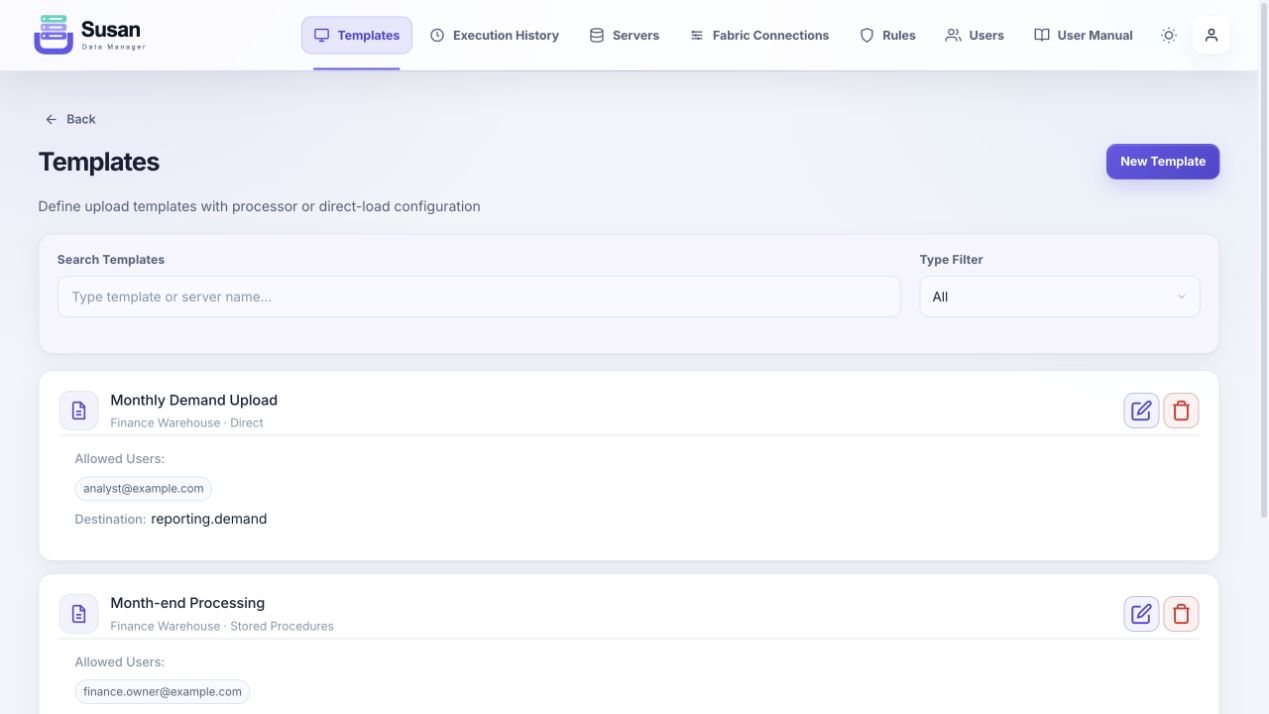
Open Templates from the header. Search by name, server, or destination; filter by technical type; and load further pages as required. On the home screen, owners can enable Only templates I own alongside the action filter. Select the edit icon to change an owned template or New Template to create one.
Use Clone on any template card, or Clone Template while editing, to open a prefilled copy. Adjust the name and parameters, then select Create Clone. All template types support cloning. The new template belongs to you and retains the reviewed settings, allowed users, follow-up actions, template validation rules and automatic period-lock policy. Destination data, execution history and manual month locks are not duplicated. Server and destination references initially match the source; change them when you need a different destination.
| Type | Owner configures |
|---|---|
| Direct | Destination, Insert / Replace by Key / Full Replace, key columns. |
| Price Update | Destination and allowed Business Units. Missing destinations are created with Business_Unit, Item_Id and Price. Uploaders map the item and price columns from Excel or CSV; each import replaces one Business Unit. |
| Processor | Processor A–D, destination, processor-to-table column mapping. |
| Comments | Destination, Page Name choices, comment-column mapping. |
| FTE | Destination/mapping, Business Units, Departments. |
| Churn | Destination, Business Units, three-level field tree, leaf value type. |
| Demand Metrics | Destination, Business Units, Legal Entity / Product / Metric hierarchy. |
| Retention | Destination and Business Units. |
| Web Analytics Targets | Direct destination/method/mapping and Business Units; ensure Year and Business Unit metadata are present. |
| Web Analytics Adjustments | Choose countries, available currencies, a required default currency, year range, brands, segments, acquisition channels, sales channels and KPI tabs. Users select an enabled currency and enter monthly adjustments for every channel combination. Managers can lock months and configure automatic locking through Period locking & history. Save includes edits across all tabs; blank clears a value and zero remains zero. |
| Web Targets Workbook | Destination and canonical target-column mapping. Users configure tab selection, detected metadata, rounding, and full-year or selected-month replacement during each import. Full-year scope uses Country + Year + Type; selected-month scope adds the exact Date. The importer keeps seven rolling backups. |
| Inventory | Three destinations and mappings, Insert or Replace by Key, key columns. |
| Revenue Share | Four destination tables and their mappings. |
| HFM Account Mapping | Three destination tables and column mappings. |
| HFM Mapping Rule | SKA1 source and Account, Custom4, ICP, and UD4 IN result tables/mappings. |
| Stored Procedures | Procedure reference, business label, description, parameter bindings, execution order, automatic retry count (0–5), and first retry delay. |
| Power BI Refresh | Credential profile values and ordered refresh groups built from Fabric connections. |
When supported, Susan can create a missing destination using the expected schema. If automatic creation is unavailable, the form displays a copyable CREATE TABLE script. When a table already exists, map each logical/source field to the correct destination column; duplicate destination mappings are blocked.
Owners and super admins can use the lock icon in Churn, Demand Metrics, and Retention headers. Locks apply to the selected year and make the month read-only. Demand Metrics and Retention locks affect every Business Unit for that year.
[schema].[procedure]), a required business label, and an optional description.@.| Purpose | Enter in Parameter Bindings | Runtime value |
|---|---|---|
| Forward a dropdown/metadata value | @Business_Unit=Business Unit | The source value, e.g. Poland |
| Forward the selected year | @Year=Year | The source year |
| Use a constant string | @Business_Unit='A' | A |
| Use a string containing an apostrophe | @Label='Director''s view' | Director's view |
| Use an explicit empty string | @Optional='' | Empty string |
@Business_Unit='A'. An entry such as @Business_Unit=='A' is invalid; older saved bindings may have passed the extra = into the procedure value.business_unit matches Business Unit.Only executable Stored Procedures and Power BI Refresh templates can be automatic follow-ups. Susan prevents cycles and applies owner/super-admin configuration controls. At runtime, permission to open the source template is sufficient: hidden follow-ups still run, but their names, procedure details, and technical errors are redacted from trigger-only users.
Open Rules to search or filter existing rules by Table or Template. Admins manage rules for owned resources; super admins can manage all rules.
| Rule type | Rule value |
|---|---|
| Required | No value; the field must be present/non-empty. |
| Regex Pattern | A regular expression the value must match. |
| Min / Max Length | Minimum or maximum character count. |
| Min / Max Value | Minimum or maximum numeric value. |
| Allowed Values | The accepted value set. |
| Conditional KPI Requirements | A condition on a metadata value plus required columns and required values. Use the visual builder; it generates the rule JSON. |
Execution History is the authoritative run log for source submissions that start chains and for standalone process runs. A trigger user sees runs they started in read-only mode; an owner sees runs for their templates; a super admin sees every run.
Super Admin Open Users to search by email, filter by role, add accounts, change roles, grant table access, or delete accounts.
APP_URL is configured, Susan sends an invitation link.Super Admin Open Servers to add, edit, assign, and delete reusable SQL Server connections.
Passwords are encrypted before storage. Use the server re-encryption action after rotating the application encryption key. Test the new key and connection before removing the old deployment configuration.
Super Admin Fabric authentication and Fabric elements are deliberately managed in separate forms.
Super Admin Open Logs to browse the existing audit records for user actions, data writes, connections, and configuration changes.
A super admin must create the exact email address first. Email comparison is normalised, but use the corporate address from the invitation.
Codes expire after 30 minutes and are single-use. Request a new code and use the most recent email.
Ask the owner to add you under Allowed Users. An admin also sees templates they own; super admins see all.
Use the format required by the template. Web Analytics requires CSV; Web Targets Workbook and HFM Account Mapping require XLSX; HFM Mapping Rule requires all three files.
Correct the reported source row/value and upload again. If the rule appears wrong, give the owner the template, sheet, line, rule, and value.
The context key was absent or misspelled and SQL has no default. Check Run context and bind it as @Parameter=Context key, or use a literal such as @Parameter='A'.
The binding contains an extra equals sign. Change @Param=='A' to @Param='A'.
Susan serializes concurrent writes to the same destination table and runs stored procedures one at a time. A background procedure does not prevent a new form save, and every successful save creates its own queued chain run. SQL Server can still delay or reject a save if the procedure itself holds a native lock on the same data.
Open Execution History and locate the first failed event. Transient SQL, connection, and transport failures use the procedure's configured retry count automatically. A result row containing a non-zero ERROR_NUMBER is treated as a real procedure failure even if the procedure swallowed the SQL exception. After correcting a permanent error, an owner or super admin can retry from the failed stage without repeating completed work. In local mode, queued work is recovered automatically after Susan restarts.
Reload the refresh page. Persisted in-progress jobs are recovered when the application starts or receives traffic; the Jobs section shows the final state.
Template, server, table, owner, and role permissions are separate. Ask a super admin to verify the relevant assignment.
Include template name, timestamp, signed-in email, correlation/run/job ID, source filename, and the exact displayed error. Never send database passwords or client secrets.